SLOrk/Software: Difference between revisions
No edit summary |
|||
| (16 intermediate revisions by 2 users not shown) | |||
| Line 1: | Line 1: | ||
* hi | * hi | ||
* download MOTU driver here: [http://ccrma.stanford.edu/groups/slork/stuff/ here] | |||
To Dos... | |||
== Step Zero == | |||
* [http://slork.stanford.edu/images/software-install/bootstrap.jpg beautiful human instruction sheet for bootstrapping] | |||
== System Preferences == | |||
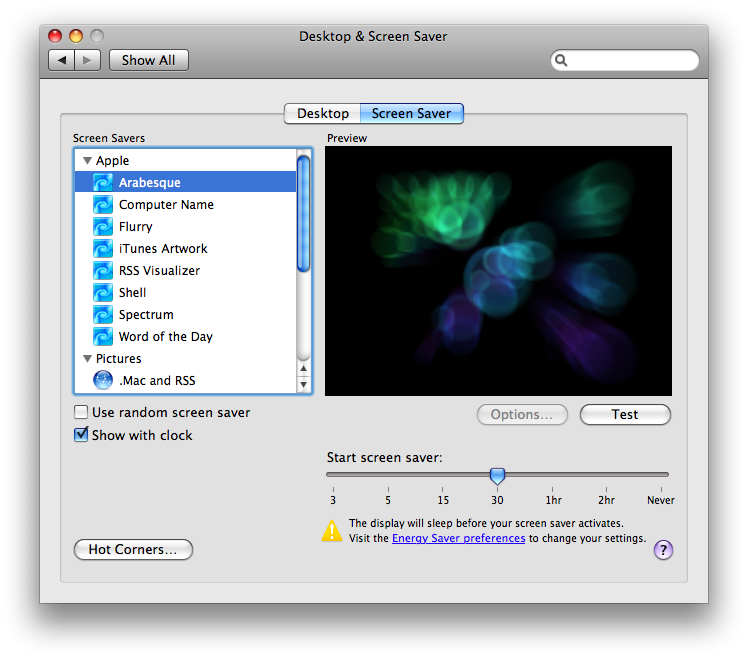
* Desktop & Screen Saver: change to 30 minutes, CHECK: Show with clock [see screenshot, '''Picture 1'''] | |||
http://slork.stanford.edu/images/software-install/Picture%201.png | |||
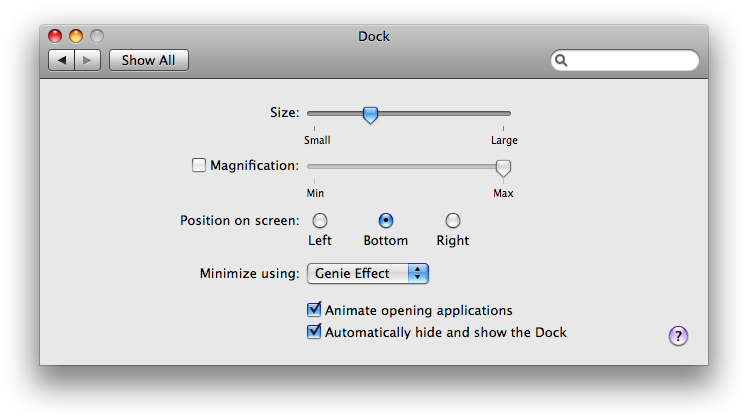
* Dock: CHECK: automatically hide and show the dock [see screenshot, Picture 2] | |||
http://slork.stanford.edu/images/software-install/Picture%202.png | |||
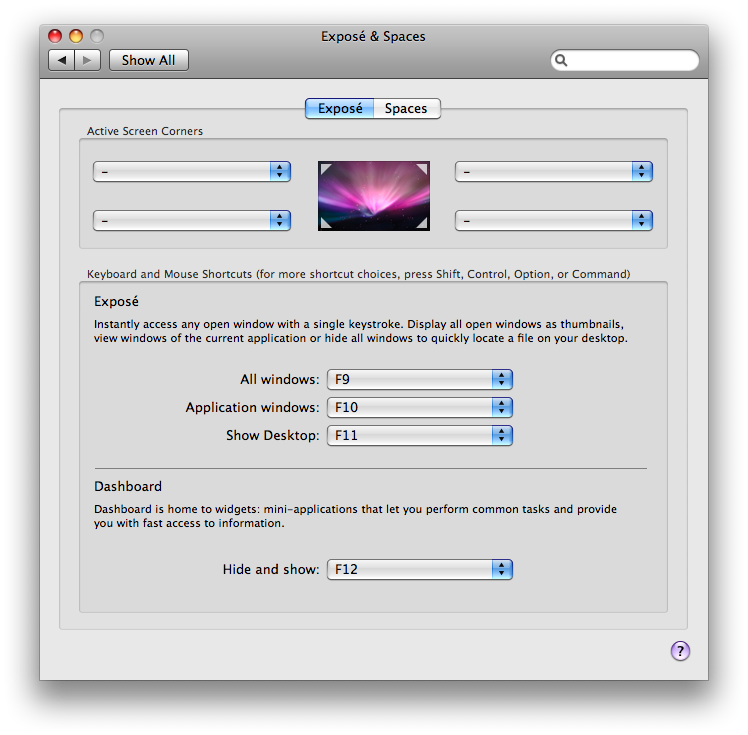
* Expose + Spaces | |||
** Expose: good as is. refer to Picture 3 | |||
http://slork.stanford.edu/images/software-install/Picture%203.png | |||
** Spaces: good as is. refer to Picture 4 | |||
http://slork.stanford.edu/images/software-install/Picture%204.png | |||
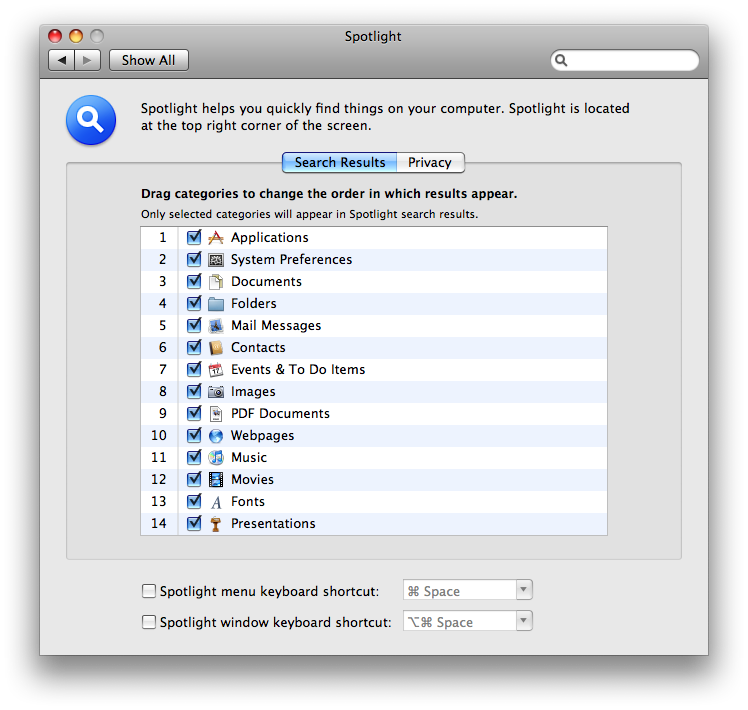
* Spotlight: UNCHECK both boxes in the bottom, refer to Picture 5 | |||
http://slork.stanford.edu/images/software-install/Picture%205.png | |||
=== Energy Saver === | |||
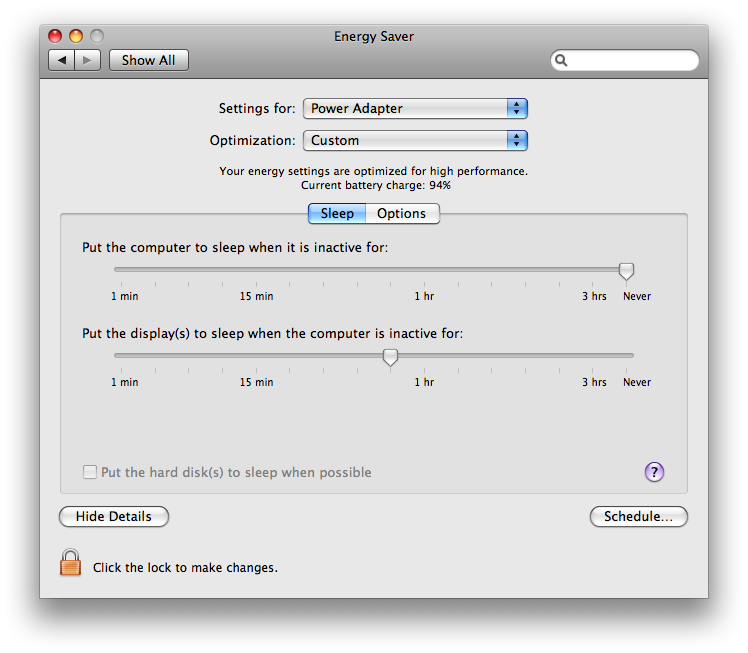
* Settings for: Power Adapters | |||
* Optimization: Better Performance (should automatically change to "Custom" after everything) | |||
* sleep: Never | |||
* displays to sleep: 45 min | |||
* refer to PIcture 6 | |||
http://slork.stanford.edu/images/software-install/Picture%206.png | |||
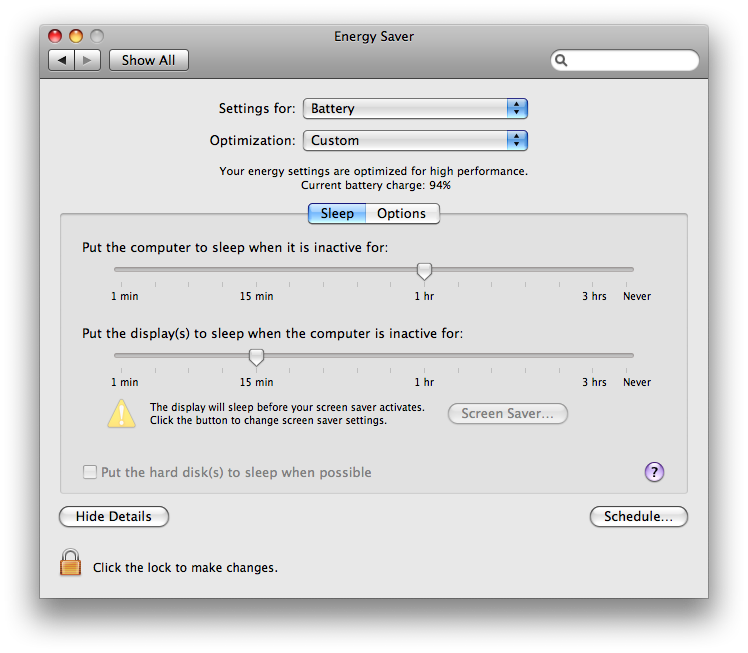
* Settings for: Battery | |||
* Optimization: Better Performance(should automatically change to "Custom" after everything) | |||
* sleep: 1 hr | |||
* display: 15min | |||
* refer to Picture 7 | |||
http://slork.stanford.edu/images/software-install/Picture%207.png | |||
* CLICK THE LOCK to prevent further changes!!! | |||
=== Sound === | |||
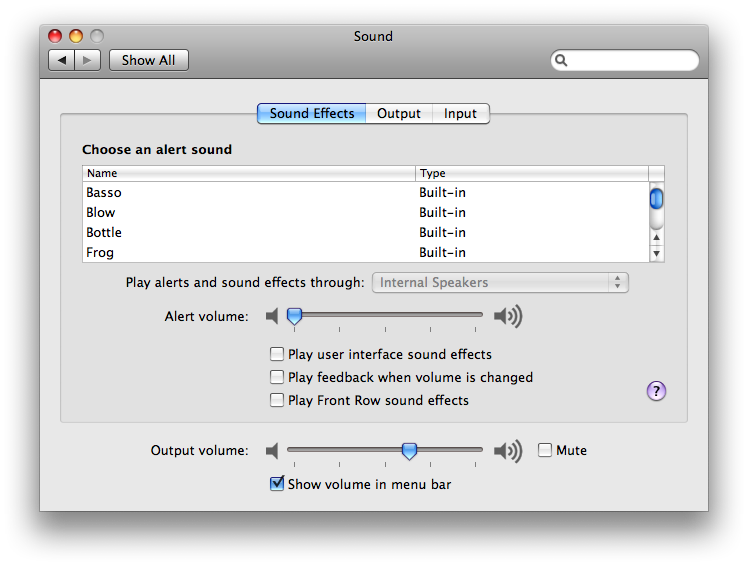
* UNCHECK the middle three feedback stuff | |||
* leave it CHECKed: show volume in menu bar | |||
* refer to Picture 8 | |||
http://slork.stanford.edu/images/software-install/Picture%208.png | |||
=== Sharing === | |||
* UNLOCK THE LOCK to make changes | |||
* Computer Name: [name the machine] | |||
* CHECK: Remote Login | |||
* LOCK to prevent further changes | |||
=== Accounts === | |||
* UNLOCK to make changes | |||
* Under "Login Options" (to the left panel), Automatic login as "The SLOrk" | |||
* CHECK "Enable fast user switching" (OK on the warning) | |||
* View as: "Short name" (refer to Picture 9) | |||
http://slork.stanford.edu/images/software-install/Picture%209.png | |||
* LOCK to prevent further changes | |||
=== Software Update === | |||
* (first, connect to safari to connect to CCRMA) | |||
* Check now for new software: DO IT AT THE END...... BECAUSE IT TAKES A LONG TIME. | |||
* Install everything we need to | |||
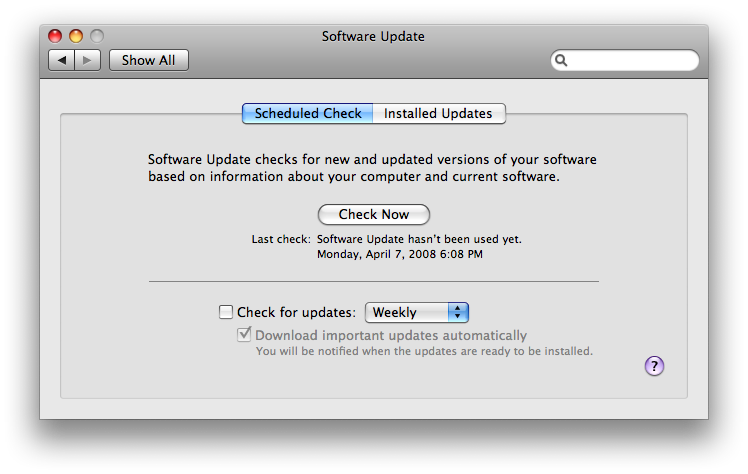
* UNCHECK: Check for updates | |||
* refer to Picture 10 | |||
http://slork.stanford.edu/images/software-install/Picture%2010.png | |||
=== Time Machine === | |||
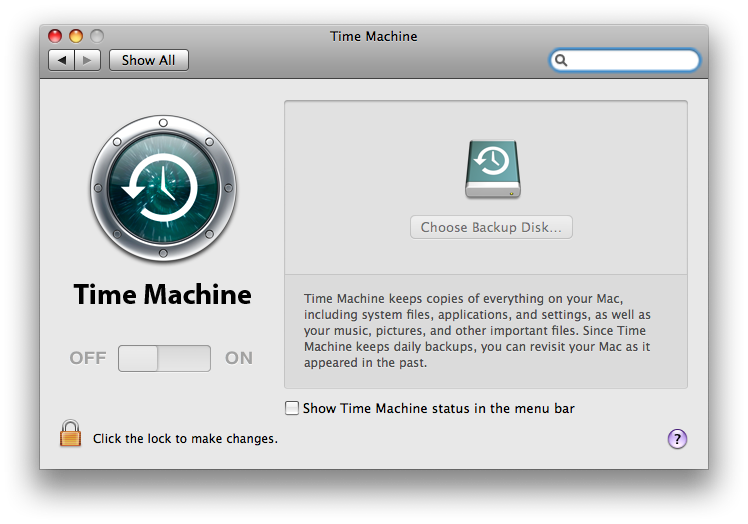
* OFF | |||
* UNCHECK: Show Time Machine status in the menu bar | |||
* refer to Picture 11 | |||
http://slork.stanford.edu/images/software-install/Picture%2011.png | |||
== FINDER == | |||
* chose "column view" at the top | |||
* REMOVE "Send Registration" from the HOME folder | |||
* GET RID OF "Documents" from the left column | |||
== Safari == | |||
* Preferences: change home page to http;//slork.stanford.edu/ | |||
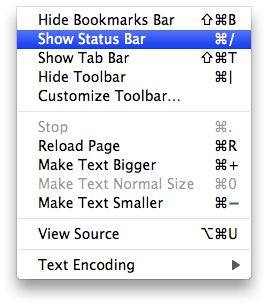
* View --> Show Status Bar | |||
* refer to Picture 13 | |||
http://slork.stanford.edu/images/software-install/Picture%2013.png | |||
* Delete all links/ bookmarks from beneath the URL box | |||
* Add slork to quick link (http://slork.stanford.edu/) | |||
* Add ccrma to quick link (http://ccrma.stanford.edu) | |||
* Add chuck to quick link (http://chuck.cs.princeton.edu) | |||
== Download the Mini Audicle == | |||
* ... from [http://audicle.cs.princeton.edu/mini/mac/ here] | |||
== DEVELOPER TOOLS == | |||
* Insert Disc 2 | |||
* Xcode Tools | |||
* XcodeTools.mpkg | |||
== Download motu drivers == | |||
* http://ccrma.stanford.edu/groups/slork/stuff/ | |||
* Choose to install to Applications | |||
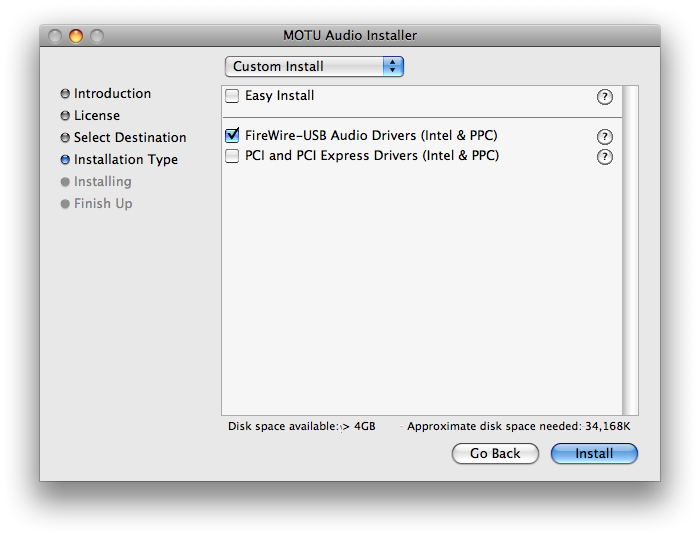
* CHECK FireWire-USB Audio Drivers ONLY | |||
* refer to Picture 12 | |||
http://slork.stanford.edu/images/software-install/Picture%2012.png | |||
* Click Install | |||
* MOTU Audio Setup.. drag to dock? | |||
* refer to picture 15: CHECK "Launch MOTU..." | |||
http://slork.stanford.edu/images/software-install/Picture%2015.png | |||
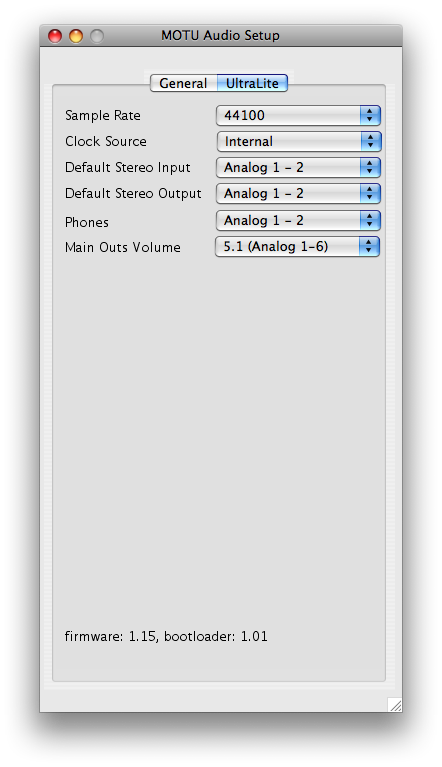
* plug in MOTU, turn on. check settings under MOTU Audio Setup, under UltraLite: | |||
** 44100 | |||
** Internal | |||
** Analog 1-2 | |||
** Analog 1-2 | |||
** Analog 1-2 | |||
** 5.1 (Analog 1-6) | |||
** refer to Picture 14 | |||
http://slork.stanford.edu/images/software-install/Picture%2014.png | |||
== CONFIGURING TERMINAL (see PIctures) == | |||
* Preferences-> Settings -> Settings | |||
** Select Pro (left column) | |||
*** Text: see picture (16) | |||
http://slork.stanford.edu/images/software-install/Picture%2016.png | |||
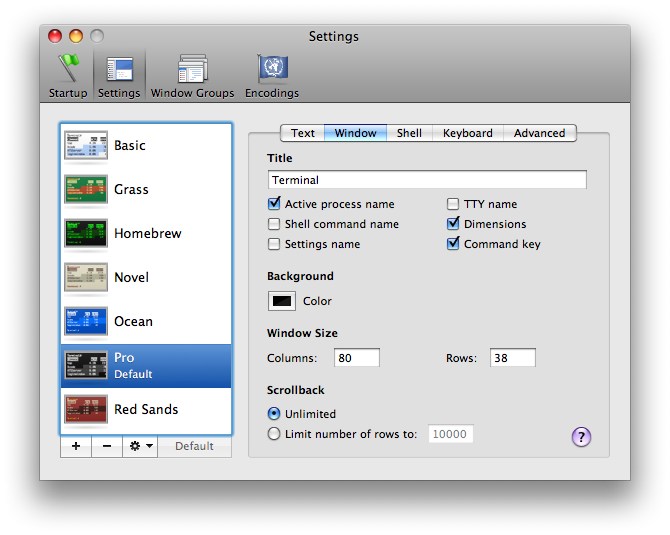
*** Window (17) | |||
http://slork.stanford.edu/images/software-install/Picture%2017.png | |||
*** Advanced: UNCHECK Bell -> Audible Bell (18) | |||
http://slork.stanford.edu/images/software-install/Picture%2018.png | |||
CONFIGURING TERMINAL (see PIctures) | ** 90% transparency? | ||
== CHECKING OUT SLORK DISTRIBUTION == | |||
for checking out SLOrk content from the repository: "trunk" (http://cm-wiki.stanford.edu/wiki/Hi) | |||
1. for checking out SLOrk content from the repository: "trunk" | 1. for checking out SLOrk content from the repository: "trunk" | ||
svn co svn+ssh://ge@ccrma-gate.stanford.edu/user/g/ge/svn/slork/trunk | svn co svn+ssh://ge@ccrma-gate.stanford.edu/user/g/ge/svn/slork/trunk | ||
2. rename trunk to slork: | 2. rename trunk to slork: | ||
mv trunk slork | mv trunk slork | ||
3. cp slork/scripts/shell/bash_profile . | 3. cp slork/scripts/shell/bash_profile .bash_profile | ||
4. Test it: | 4. Test it: | ||
chuck | chuck | ||
--> you should get "[chuck]: no input files... (try --help)" | --> you should get "[chuck]: no input files... (try --help)" | ||
== Dock == | |||
Dock | remove and add stuff to the dock to make it look like PIcture 19 | ||
http://slork.stanford.edu/images/software-install/Picture%2019.png | |||
[[Category: SLOrk]] | |||
Latest revision as of 08:28, 24 April 2008
- hi
- download MOTU driver here: here
To Dos...
Step Zero
System Preferences
- Desktop & Screen Saver: change to 30 minutes, CHECK: Show with clock [see screenshot, Picture 1]
http://slork.stanford.edu/images/software-install/Picture%201.png
- Dock: CHECK: automatically hide and show the dock [see screenshot, Picture 2]
http://slork.stanford.edu/images/software-install/Picture%202.png
- Expose + Spaces
- Expose: good as is. refer to Picture 3
http://slork.stanford.edu/images/software-install/Picture%203.png
- Spaces: good as is. refer to Picture 4
http://slork.stanford.edu/images/software-install/Picture%204.png
- Spotlight: UNCHECK both boxes in the bottom, refer to Picture 5
http://slork.stanford.edu/images/software-install/Picture%205.png
Energy Saver
- Settings for: Power Adapters
- Optimization: Better Performance (should automatically change to "Custom" after everything)
- sleep: Never
- displays to sleep: 45 min
- refer to PIcture 6
http://slork.stanford.edu/images/software-install/Picture%206.png
- Settings for: Battery
- Optimization: Better Performance(should automatically change to "Custom" after everything)
- sleep: 1 hr
- display: 15min
- refer to Picture 7
http://slork.stanford.edu/images/software-install/Picture%207.png
- CLICK THE LOCK to prevent further changes!!!
Sound
- UNCHECK the middle three feedback stuff
- leave it CHECKed: show volume in menu bar
- refer to Picture 8
http://slork.stanford.edu/images/software-install/Picture%208.png
Sharing
- UNLOCK THE LOCK to make changes
- Computer Name: [name the machine]
- CHECK: Remote Login
- LOCK to prevent further changes
Accounts
- UNLOCK to make changes
- Under "Login Options" (to the left panel), Automatic login as "The SLOrk"
- CHECK "Enable fast user switching" (OK on the warning)
- View as: "Short name" (refer to Picture 9)
http://slork.stanford.edu/images/software-install/Picture%209.png

- LOCK to prevent further changes
Software Update
- (first, connect to safari to connect to CCRMA)
- Check now for new software: DO IT AT THE END...... BECAUSE IT TAKES A LONG TIME.
- Install everything we need to
- UNCHECK: Check for updates
- refer to Picture 10
http://slork.stanford.edu/images/software-install/Picture%2010.png
Time Machine
- OFF
- UNCHECK: Show Time Machine status in the menu bar
- refer to Picture 11
http://slork.stanford.edu/images/software-install/Picture%2011.png
FINDER
- chose "column view" at the top
- REMOVE "Send Registration" from the HOME folder
- GET RID OF "Documents" from the left column
Safari
- Preferences: change home page to http;//slork.stanford.edu/
- View --> Show Status Bar
- refer to Picture 13
http://slork.stanford.edu/images/software-install/Picture%2013.png
- Delete all links/ bookmarks from beneath the URL box
- Add slork to quick link (http://slork.stanford.edu/)
- Add ccrma to quick link (http://ccrma.stanford.edu)
- Add chuck to quick link (http://chuck.cs.princeton.edu)
Download the Mini Audicle
- ... from here
DEVELOPER TOOLS
- Insert Disc 2
- Xcode Tools
- XcodeTools.mpkg
Download motu drivers
- http://ccrma.stanford.edu/groups/slork/stuff/
- Choose to install to Applications
- CHECK FireWire-USB Audio Drivers ONLY
- refer to Picture 12
http://slork.stanford.edu/images/software-install/Picture%2012.png
- Click Install
- MOTU Audio Setup.. drag to dock?
- refer to picture 15: CHECK "Launch MOTU..."
http://slork.stanford.edu/images/software-install/Picture%2015.png

- plug in MOTU, turn on. check settings under MOTU Audio Setup, under UltraLite:
- 44100
- Internal
- Analog 1-2
- Analog 1-2
- Analog 1-2
- 5.1 (Analog 1-6)
- refer to Picture 14
http://slork.stanford.edu/images/software-install/Picture%2014.png
CONFIGURING TERMINAL (see PIctures)
- Preferences-> Settings -> Settings
- Select Pro (left column)
- Text: see picture (16)
- Select Pro (left column)
http://slork.stanford.edu/images/software-install/Picture%2016.png

- Window (17)
http://slork.stanford.edu/images/software-install/Picture%2017.png
- Advanced: UNCHECK Bell -> Audible Bell (18)
http://slork.stanford.edu/images/software-install/Picture%2018.png

- 90% transparency?
CHECKING OUT SLORK DISTRIBUTION
for checking out SLOrk content from the repository: "trunk" (http://cm-wiki.stanford.edu/wiki/Hi)
1. for checking out SLOrk content from the repository: "trunk" svn co svn+ssh://ge@ccrma-gate.stanford.edu/user/g/ge/svn/slork/trunk 2. rename trunk to slork: mv trunk slork 3. cp slork/scripts/shell/bash_profile .bash_profile 4. Test it: chuck --> you should get "[chuck]: no input files... (try --help)"
Dock
remove and add stuff to the dock to make it look like PIcture 19
http://slork.stanford.edu/images/software-install/Picture%2019.png
