CCRMA Documentation links: index contents overview rooms account staff about
(contents of this file: links to each section)
CCRMA uses several Blackmagic ATEM Mini Extreme ISO (manufacturer page) video switchers:
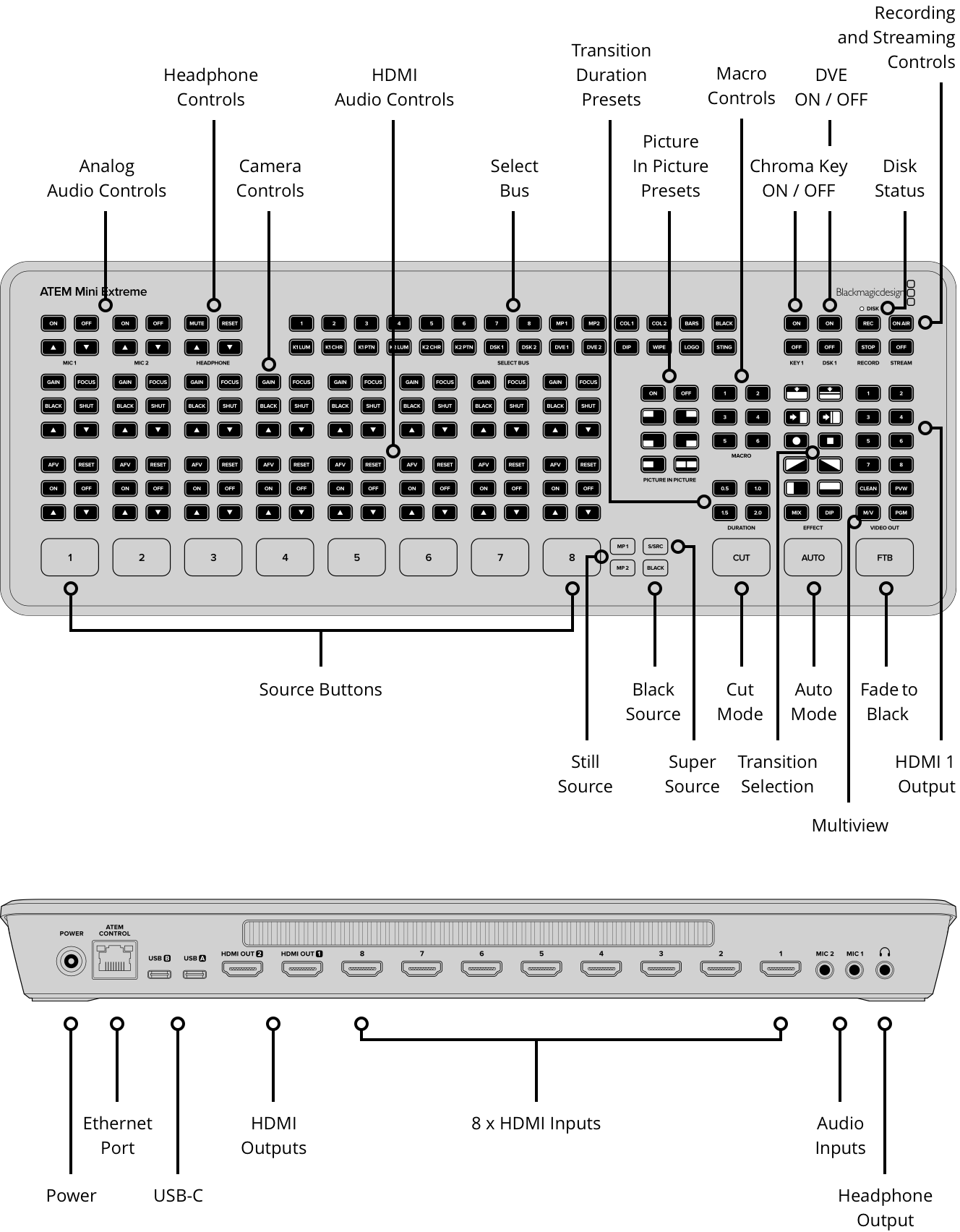
They can select / fade / combine from 8 HDMI inputs to output a “program” video source that can be livestreamed and/or a virtual camera video source to a connected computer (for video conferencing, live processing, etc.), with rudimentary audio mixing. Also it can record “program” and/or the individual sources.
The big buttons labeled 1 through
8 let you select the 8 video sources; also they light up to
show selected (and sometimes “next”) video source. The other three large
buttons: CUT makes selecton be instantaneous
vs. AUTO applies a fade or other effect; FTB
toggles “fade to black”. The buttons are reminiscent of a drum machine
(Wikipedia);
hence the device’s nickname.
The many tiny buttons access lots of other functions as shown.
The small M/V and PGM buttons choose
between the two display modes (determining what goes out the ATEM’s
HDMI OUT 1 output):
Ten more small buttons above these can select other images:
1 through 8 (directly monitoring / previewing
any of the 8 cameras), PVW (the previewed camera, when the
ATEM is set to Program / Preview mode), or CLEAN
[feed].
The ATEM’s HDMI OUT 2 always only shows Multi-View.
Dedicated little buttons can place the signal from HDMI 1 (typically a close-up on the presenter’s face) as a small picture-in-picture within the background of any seleted input (typically from the presenter’s laptop).
XXX but we use presets / macros for this?
The ATEM has a USB-C output that can connect to an SSD for recording.
(Usually we connect the other one to a computer so the ATEM can be its
“webcam.”) It records all 8 HDMI inputs individually as well as the
program. It even makes an editable Davinci Resolve project file
(.drp) with the cuts that went into “program”.
(For top quality, record raw 4K directly from the cameras.)
See https://www.blackmagicdesign.com/products/atemmini/software for features and usage.
Download link: https://www.blackmagicdesign.com/support, choose
ATEM Production Switchers (under “Product Family”), and the
current ATEM Switchers Update for your OS. You can click
Download Only to opt out of their
at-first-glance-seemingly-default Register & Download
form.
CCRMA use cases:
Discretely video-producing a Classroom zoom session from a laptop, switching camera view and PiP corner to improve the recorded/remote viewing experience without getting in the presenter’s personal space.
Operating the Stage video cameras from the livestream position, especially zoom
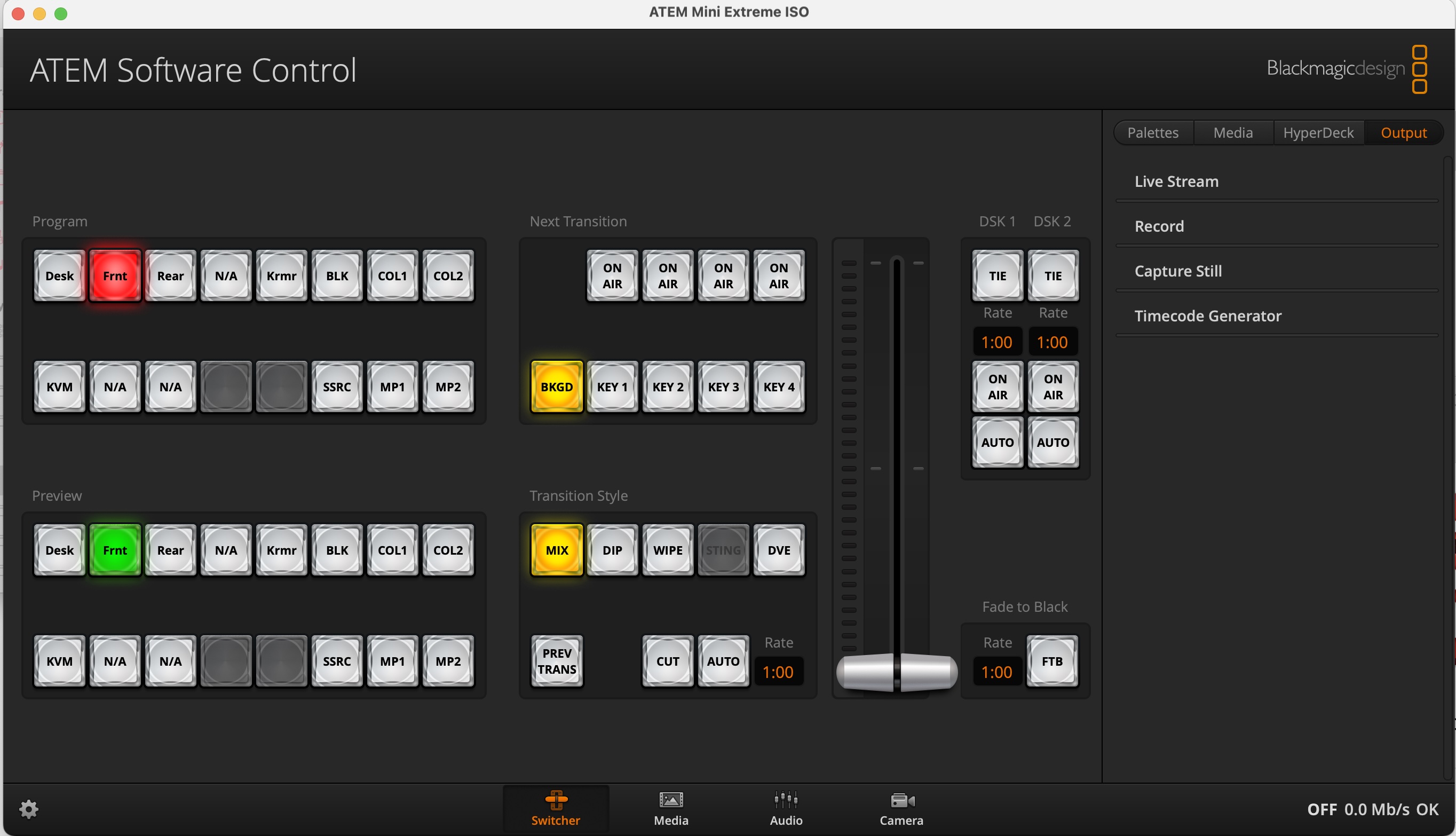
The app’s main screen (the Switcher tab) allows the same
source selection as the large physical buttons:
Loading and selecting the still images corresponding to the “media
player” video sources MP1 and MP2.
Full control of the picture-in-picture options (size, positon, sources)
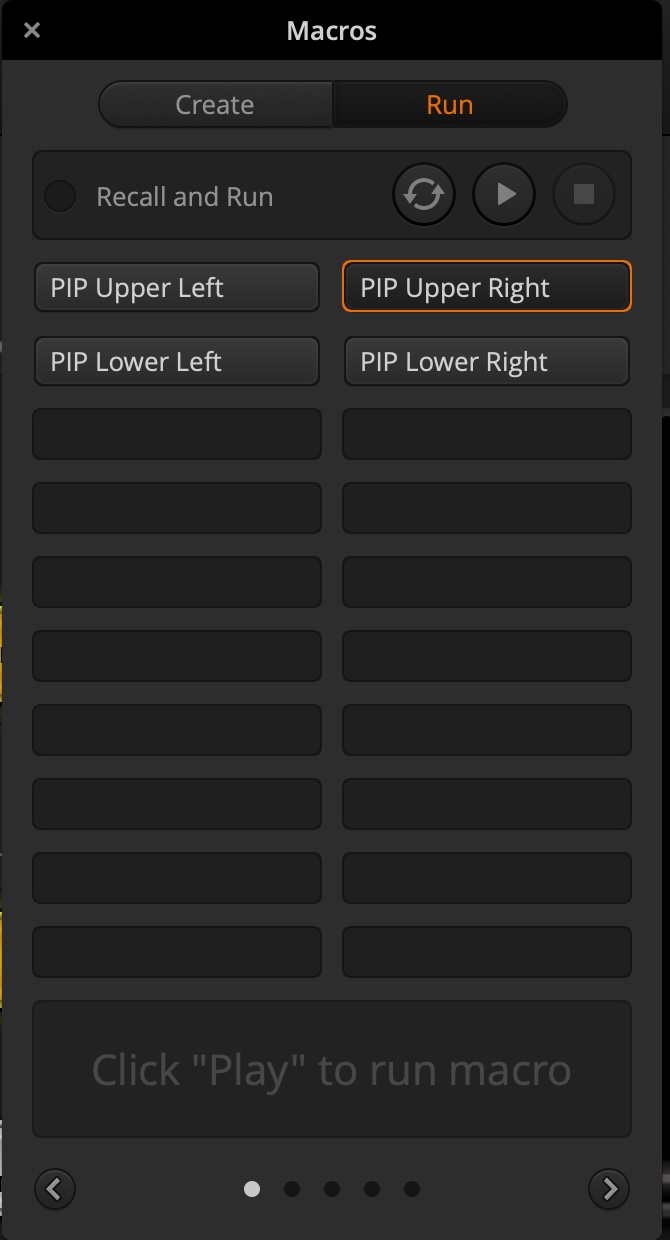
For picture-in-picture, select “Macros” from the “Macros” menu:

This will bring up the programmed macros, including four PIP (one for
each corner). Choose Run at the top, then select any macro
and click the “play” icon (the right-facing triangle) to “Recall and
Run” the macro.
(take from current Stage docs)
This page of CCRMA documentation last committed on Wed Mar 25 10:58:45 2026 -0700 by Matthew James Wright. Stanford has a page for Digital Accessibility.